Showing posts with label kali linux. Show all posts

Saturday, 26 August 2017

Access Windows Folder via Kali Linux 2017.1

Most of the Windows users, who are new to Kali Linux, are eager to know how to access Windows files or Folders through Kali Linux. I would like to tell you that it is super easy to access windows files or folders through Kali Linux 2017.2 version. Simply share your Windows folder and access it through Kali Linux Network.
Here is how you can do it in few simple steps.

Login to the Windows System and goto the folder you would like to share on your network/s. On my Windows System I chose "Softwares" folder that I would like to share on my network. To share "Softwares" folder, I right clicked on it and select Properties. Then I chose "Sharing" tab, next to "General". On this pop-up box I clicked on "Advanced Sharing" button and it will bring "Advanced Sharing" pop-up window. I checked "Share this folder" so that this folder is visible to my network. I left the name "Softwares" in Share name box as is, however you can mention any name of this shared folder to your network. You can even limit the number of simultaneous users (for security purpose) to access this folder. You can even give description to the folder, in the Comment box, so that it would be easy for you to identify the folder you shared on your network. Finally, click on "Permission" button if you wish to modify files or folders from the other network. For security reason, I allow only "Read" mode.

Now login to Kali Linux as a root (Kali Linux is installed on my virtual machine). On top left of the Taskbar, click on "Places" and then on the drop down list click on "Browse Network".

This window will show your network. Now double click on your network and enter username, domain (mine is Workgroup) and password.

Once your credential is verified, you will see your shared folder and you can access files or/and folders to this network.

Thursday, 2 February 2017

Upcoming Book- Kali Linux Revealed: Mastering the Penetration Testing Distribution


More exciting news! In the past year, Kali Linux Official Team has been working internally on an Official Kali Linux book – Kali Linux Revealed: Mastering the Penetration Testing Distribution. This is the first official Kali book from Offsec Press, and is scheduled for release on June 5th, 2017. Kali Linux Revealed will be available in both hard copy and online formats. Keeping the Kali Linux spirit, the online version of the book will be free of charge, allowing anyone who wishes to hone their skills and improve their knowledge of Kali to do so at no cost. This book, together with our official Kali documentation site will encompass the body of knowledge for the Kali Linux Certified Professional (KLCP).

Wednesday, 12 August 2015

Kali Linux 2.0 has now Released

 Kali Linux  Download

Kali Linux  has been released yesterday, 11-Aug-2015. Kali Linux 2.0 is now with a major release in tools, distribution and user interface since March 2013. Here are the major changes that you can see in Kali Linux 2.0.
  • new 4.0 kernel
  • based on Debian Jessie
  • improved hardware and wireless drivers
  • support for variety of Desktop Environments (GNOME, KDE, xfce, mate, e17, lxde, i3wm)
  • updated penetration testing tools
and much more.

Monday, 27 July 2015

Create Bootable USB in Kali Linux

Hi Everyone. Today I am going to show you how to create bootable usb in Kali Linux using line utility. There are several 3rd party utilities available in the market, some of them are UNetbootin, Universal USB Installer, YUMI and RMPrepUSB. These all are GUI-based utilities. But, today I am going to create a linux bootable usb using dd (device driver). dd is a simple command line program that is pre-installed in almost linux based operating systems. It is a simple, yet versatile and powerful tool. It can be used to copy from source to destination, block-by-block, regardless of their filesystem types or operating systems. Below screen-shot shows you how to create bootable usb using dd command.

Tested on: Kali Linux 1.1.0a (64-bit)
I logged in as a superuser. For normal user, please run sudo or su command to complete the task.

STEP:
  • Before we begin, please check the partition of your hard drive. Open terminal and run fdisk -l. 
  • Now, plug in formatted (in fat32) usb drive and re-run fdisk -l to identity your usb drive name in partition table. Mine detected as sdb (Disk /dev/sda).
  • Now, goto the location where you have placed your iso file. I chose Debian 8.1 (64-bit) Disc 1 to create bootable iso.
  • Type dd command to create bootable usb. syntax: dd if=filename.iso of=/dev/sdx bb=y, where filename is the image of the file (in iso format), x represents external drive and y represent block size of the external drive (in kb as K or in mb as M). Please check screen-shot.
  • Once program begin, you will find blinking cursor on the next line. Be patient for a while until it finishes creating bootable usb. Once finished, you will get the status of the operation.
  • If operation is successful, run sync and then eject /dev/sdx. Plug in your usb drive. If operation is successful, you will see bootable usb icon on your desktop.

Monday, 22 June 2015

Install Synaptic Package Manager in Kali Linux

About  Synaptic Package Manager
Synaptic Package Manager is GTK+- based GUI for apt (Advance Packaging Tool)- the package management used by Debian and its derivatives. Synaptic Package Manager- a very handy tool, used to install, remove and update software packages and add repositories. Though, based on deb packages but can be used on the system bsed on RPM packages.

Features
  • Install, remove, upgrade and downgrade single and multiple packages System-wide upgrade
  • Package search utility
  • Manage package repositories
  • Find packages by name, description and several other attributes
  • Select packages by status, section, name or a custom filter
  • Sort packages by name, status, size or version
  • Browse available online documentation related to a package
  • Download the latest changelog of a package
  • Lock packages to the current version
  • Force the installation of a specific package version
  • Undo/Redo of selections
  • Built-in terminal emulator for the package manager
  • Allows creation of download scripts
I have tested it on Kali Linux 1.1.0a machine with 32-bit architecture. To begin installing Synaptic Package Manager on your system, 

1. Please add below two repositories

deb http://http.kali.org/kali kali main non-free contrib 
deb http://security.kali.org/kali-security kali/updates main contrib non-free

to sources.list file (path: Computer -> File System -> etc -> apt -> sources.list). Save the file and exit. To know more on Kali Linux repositories please check my post, Kali Linux Repositories.

Note: Before saving sources.list file, make sure that it shouldn't have duplicate entries of  repository/ ies or else you may get 404 error or unmet dependency error.

2. Now open terminal and type apt-get update && apt-get upgrade to update kali linux.

3. Once done, execute apt-get install synaptic and then apt-get install software-center.

Wednesday, 11 February 2015

Kali Linux 1.1.0 has been released


Kali Linux has now matured within two years, from its initial release. Kali Linux 1.1.0 has been on 7th Feb 2015, with more flexible Linux distribution, rich in security and penetration testing features on varied ARM hardware. For more please read this article Kali Linux 1.1.0 Realeased.

ISO Download: https://www.kali.org/downloads/
Kali Linux Releases: http://kali4hackers.blogspot.in/p/kali-linux-releases.html

Friday, 3 October 2014

Kali Linux NetHunter


NetHunter, built on top is Kali Linux, is Andriod penetration testing platform that works on Nexus devices. With all the features of Kali tools, NetHunter has the ability to get a full VNC session from your phone to a graphical Kali chroot. A joint effort between the Kali community member “BinkyBear” and Offensive Security. NetHunter supports Wireless 802.11 frame injection, one-click MANA Evil Access Point setup, HID keyboard (Teensy like attacks), as well as BadUSB MITM attacks – and is built upon the sturdy shoulders of the Kali Linux distribution and toolsets.

Supported Devices:
  • Nexus 4 (GSM)
  • Nexus 5 (GSM/LTE)
  • Nexus 7 [2012] (Wi-Fi)
  • Nexus 7 [2012] (Mobile)
  • Nexus 7 [2013] (Wi-Fi)
  • Nexus 7 [2013] (Mobile)
  • Nexus 10
Current Release: v1.0.2
Download Link: NetHunter

Monday, 15 September 2014

Friday, 5 September 2014

Kali Linux Custom VMWare and ARM Images

Please find the link below for several customize VMware and ARM images. This link re-direct to the updated and customize VMWare and ARM Images.

Link: Kali Linux Custom VMWare and ARM Images

Tuesday, 2 September 2014

Kali Linux 1.0.9 released


Kali Linux 1.0.9 release now provides support for the last Raspberry Pi B+ ARM computer. It has also included two more images for the Odroid U3 and Cubox-i ARM computers. There are also a long list of bug fixes and updates to existing tools. Please click on the image to go Kali Linux download page.

New Kali Linux Tools Website

Kali Linux has launched a website for tools from various different niches of the security and forensics fields. This site aims to list them all and provide a quick reference to these tools. In addition, the versions of the tools can be tracked against their upstream sources. If you find any errors (typos, wrong URLs) please drop a mail to info@kali.org.

Wednesday, 23 July 2014

Kali Linux 1.0.8 released


Kali Linux 1.0.8 has been released with USB EFI boot support. For more, please click here. To Download Kali Linux flavour, please click here.

Thursday, 29 May 2014

Kali Linux 1.0.7 Released


Kali Linux 1.0.7 released with a new 3.14 kernel. Please click here to know new features of Kali Linux release.

Monday, 31 March 2014

Kali Linux Repositories

Hi Everyone! this is an updated post on Kali Linux repositories. Well, a repository is an archival source from where Kali Linux softwares are updated and upgraded online. sources.list is the file where all the links for necessary update are saved. When we execute a command apt-get update, it searches for the updated package online. Un-wanted or un-necessary links can cause failure of Kali Linux package installation, so make sure what link/s should be added to the repository so that Kali Linux should get proper update. 

Kali Linux distribution has three repositories, which are mirrored world-wide:

http.kali.org (mirrorlist): the main package repository;
security.kali.org (mirrorlist): the security package repository;
cdimage.kali.org (mirrorlist): the repository with ISO images.

On a clean installation, Kali Linux, have the following two entries present in /etc/apt/sources.list:

deb http://http.kali.org/kali kali main non-free contrib
deb http://security.kali.org/kali-security kali/updates main contrib non-free
These are called Regular repositories from where Kali Linux get its update. In case, you require additional package, then your can add valid package source. You might also want to add the following repositories as well. These are Sources repositories:

deb-src http://http.kali.org/kali kali main non-free contrib
deb-src http://security.kali.org/kali-security kali/updates main contrib non-free

Finally, do not forget to do an update Kali Linux on terminal by typing apt-get update && apt-get upgrade && apt-get dist-upgrade.


Suggestion from Mr. Phong Do. Mr. Phong Do, made a change by just replacing "http:" with "deb" and found update is much faster. Hi all, please check and update me in comments so that I can update the post accordingly. THANKS.

just change http to repo like this:
deb http://repo.kali.org/kali kali main non-free contrib

Installing Cheese


Cheese is an open source application that allows Linux users to access their webcam device and take pictures or created videos with funny effects. It is mostly used under the GNOME desktop environment. The application has no binary packages for a specific Linux distribution, only a source archive that allows advanced users to configure, compile and install it under any Linux-based operating system.

STEPS:

Before you install Cheese, make sure that you do update kali linux by running apt-get update command. For more please click here, if you didn't added repository.

1. Open terminal and type apt-get install cheese.

Allowing it by typing Y to continue dependency of the package.

2. Once Cheese is installed successfully, check the installed package from the menu list. Click on Applications--> Sound & Video--> Cheese to open the application.

Friday, 21 March 2014

Installing Skype in Kali Linux

Before you proceed make sure that you run apt-get update from terminal. Check the necessary repository in sources.list file. For more please read this post.

STEPS:

1. Goto www.skype.com and click on Downloads.

2. Being a Kali Linux user, select Choose your distribution as debian and click Save File to download.

3. Open terminal and locate the downloaded file.

4. Run dkpg -i skype-debian_x.x.x.x_i386.deb (where x is the version of skype) to install the package.
5. Type skype to run the program.

6. Accept License agreement.

Tuesday, 4 March 2014

Check Disk space in Kali Linux

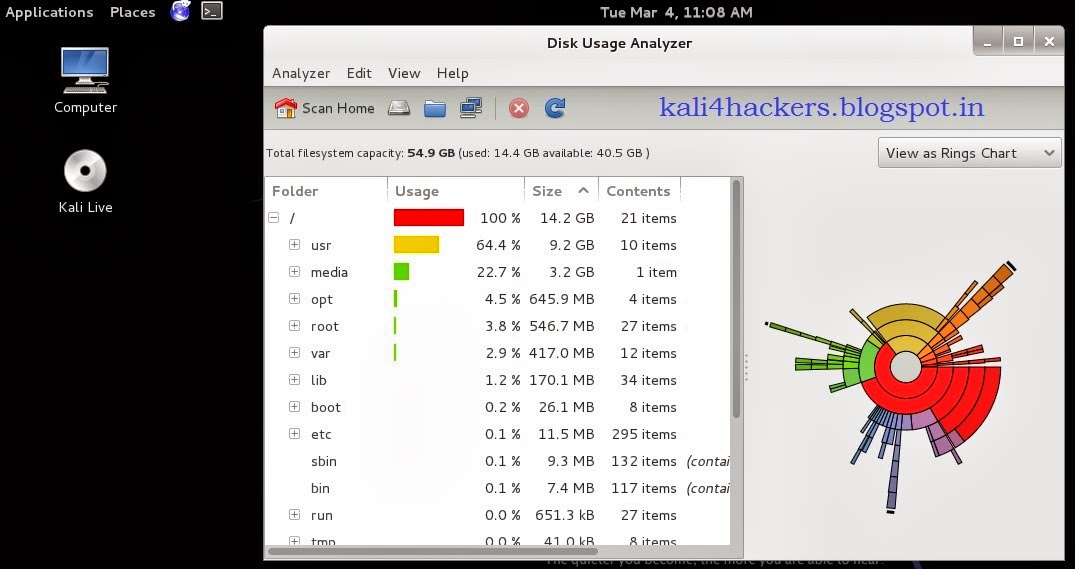
After installing Kali Linux on hard drive or on virtual machine, we may have come across with a warning message of "Low Disk usage". It happens when we allocate insufficient disk space during partition for kali linux or else when we do a regular "update" and "upgrade" of patches or downloading softwares. Kali Linux comes with a graphical built-in tool, i.e. Disk Usage Analyzer. This tool helps you to check the disk space usage. There are other options too, to check usage as per file system.

If you need to check from terminal(for non-gui users), then there are two classic commands available for every linux distros, i.e. 

(a) df: Report file system disk space usage
(b) du: Estimate file space usage

df command is used to check free disk space. You can type df -h or df -k to list free disk space. It displays statistics about the amount of free disk space on the specified file system or on the file system of which file is a part. Values are displayed in 512-byte per block counts.

du command is used to show how much space one ore more files or directories is using. Type du -sh where -s option summarize the space a directory is using and -h option provides "Human-readable" output.


Sunday, 2 March 2014

Troubleshooting Kali Linux Installation

There could be various reason for installation failure. Few of the basic reasons are corrupted downloadable file, damage media during writing an iso file, in-sufficient disk space, missing hash file etc. Click here to open the link and read this article on Troubleshooting Kali Linux Installation.

Thursday, 30 January 2014